
How to polish a scene: fixes from your marks
Polishing corrects a finished scene point by point: you mark a fragment and say what is wrong with it, the assistant offers a replacement, and the decision stays with you. A scene you have already accepted can be polished too.
-
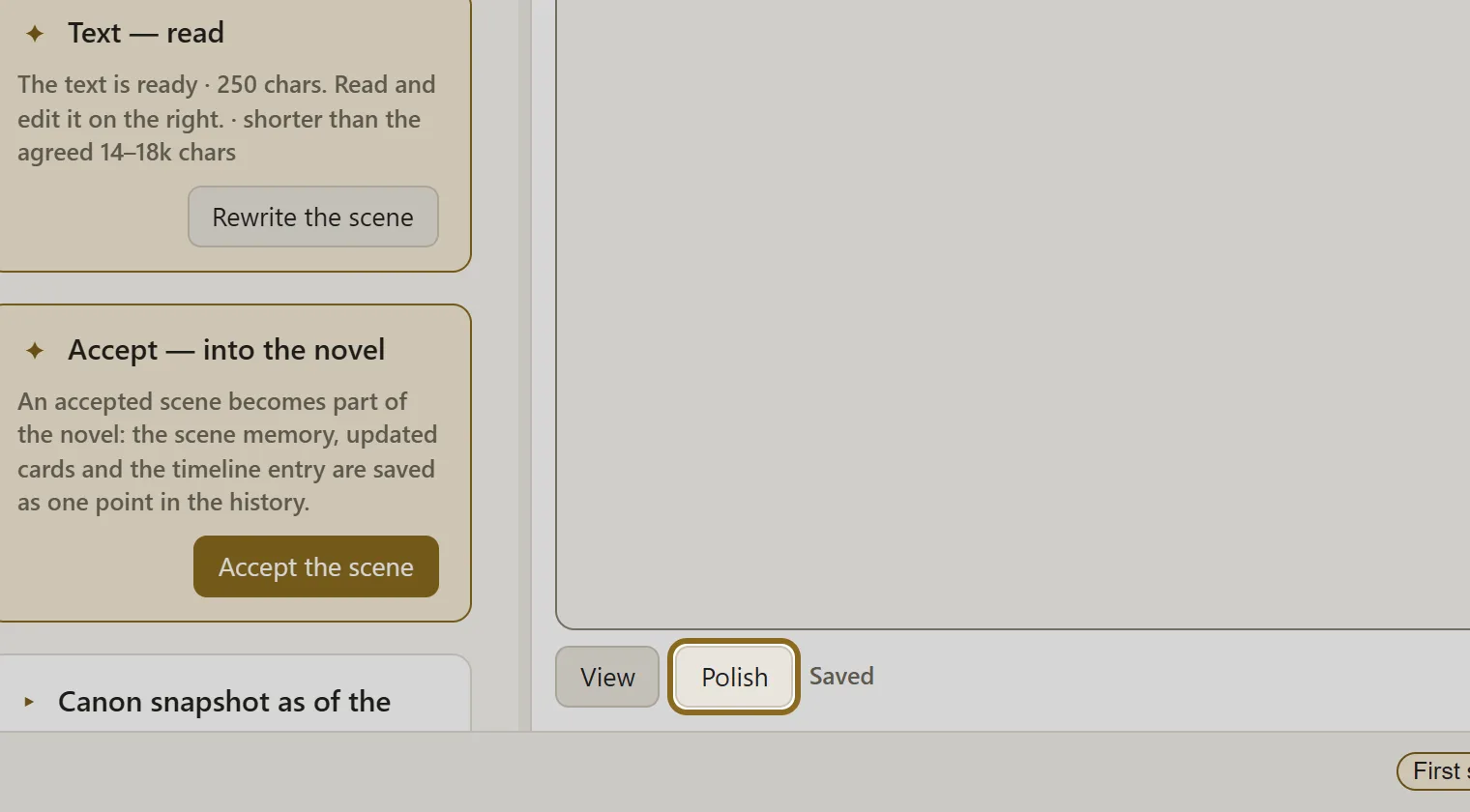
Open the scene and, in the “Read and edit” panel, click Polish.
-
Select with the mouse the fragment that does not satisfy you. Ready-made notes open beside it: “Style”, “Repetition”, “Excess” and others.
-
Click the note that fits — the fix starts at once, without confirmation. It comes out more precise if you write the note in your own words and click Run. If you would rather mark the whole scene up first, put the marks down with Mark without running and then handle them all at once from the polishing panel.
-
A “before → after” card appears under the fragment. The “after” text can be corrected right in the card. Then click Accept or Reject.
-
Accepted fixes do not reach the text straight away. Once you have decided on every card, click the button in the polishing panel that applies the accepted fixes. Until then the scene stays as it was.
-
Made a mistake — the “Undo (Ctrl+Z)” button above the text takes one step back while the scene is open. When you are done, click Done.