
How to put the book together: export
Export gathers the novel into a single file — for an e-reader, an editor or a publisher. There is no need to wait for the last scene: you can export at any moment, from any section of the novel you have open.
-
Click Export in the top header of the workbench.
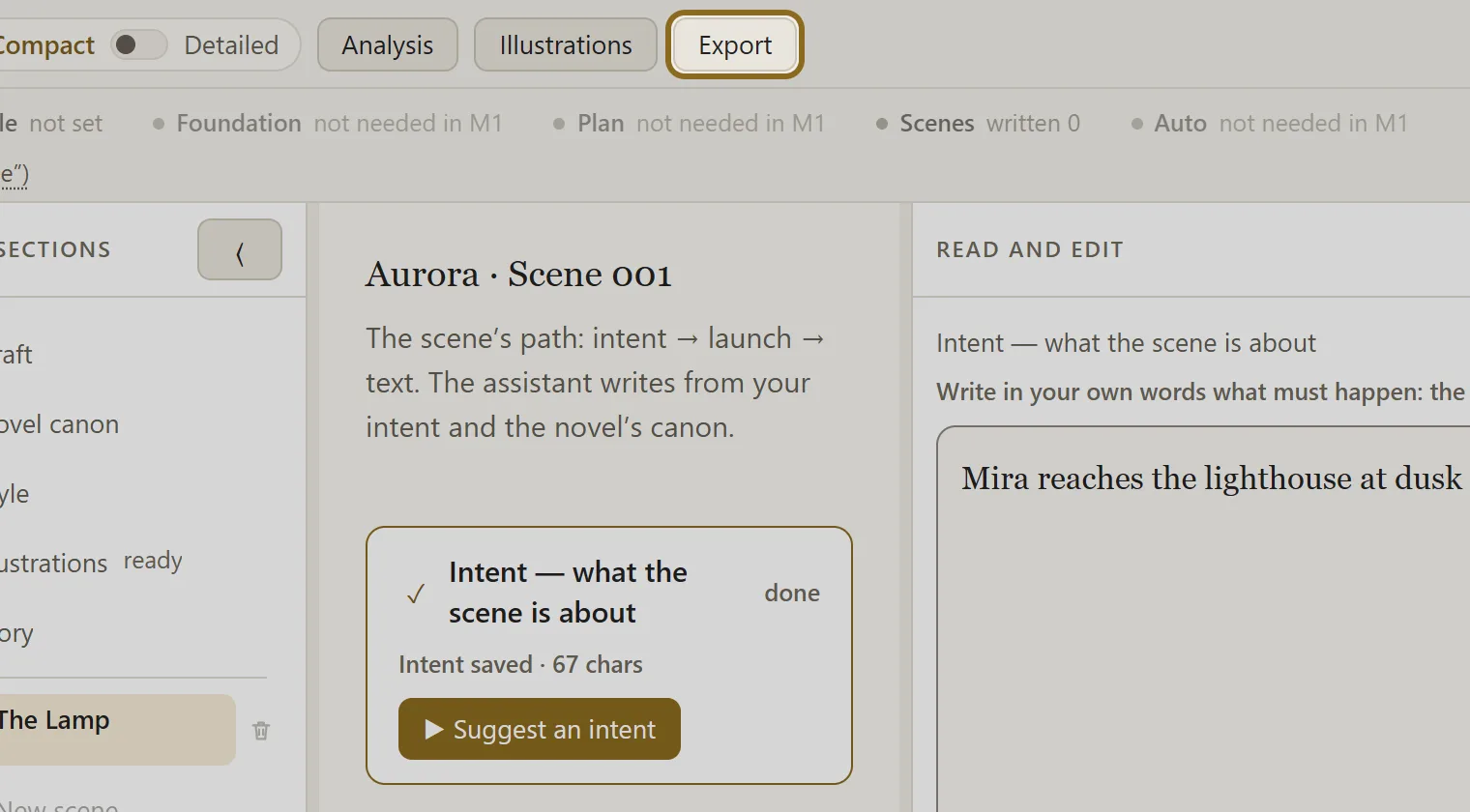
-
In the “What to export” block choose “Text” — the prose of the novel, the scenes one after another. “Canon”, “Plan” and “Summaries” are exported there separately as well.
-
Choose the kind of file: epub — for a phone or an e-reader, docx — for an editor, fb2 — for e-readers and self-publishing sites, txt and md — plain text.
-
Check the “Include scenes not yet accepted” tick box. It is on in advance: clear it if only accepted scenes should reach the book.
-
If you need illustrations inside the book, choose “Key frames” or “All frames” in the “Pictures in the file” block. Only docx, fb2 and epub carry pictures. Pictures marked as defects are left out of the book by default: the window says how many there are and opens them with the “Show” button. If you need them too, clear the “Leave out marked pictures” tick box.
-
Click Download — the file is put together and downloaded.