
How to adjust a prompt to suit you
“Prompt library” holds the texts of the briefs the assistants write prose and run the scene steps by. The system text never changes: you edit a variant of your own and decide when to put it to work. One button brings the system text back.
-
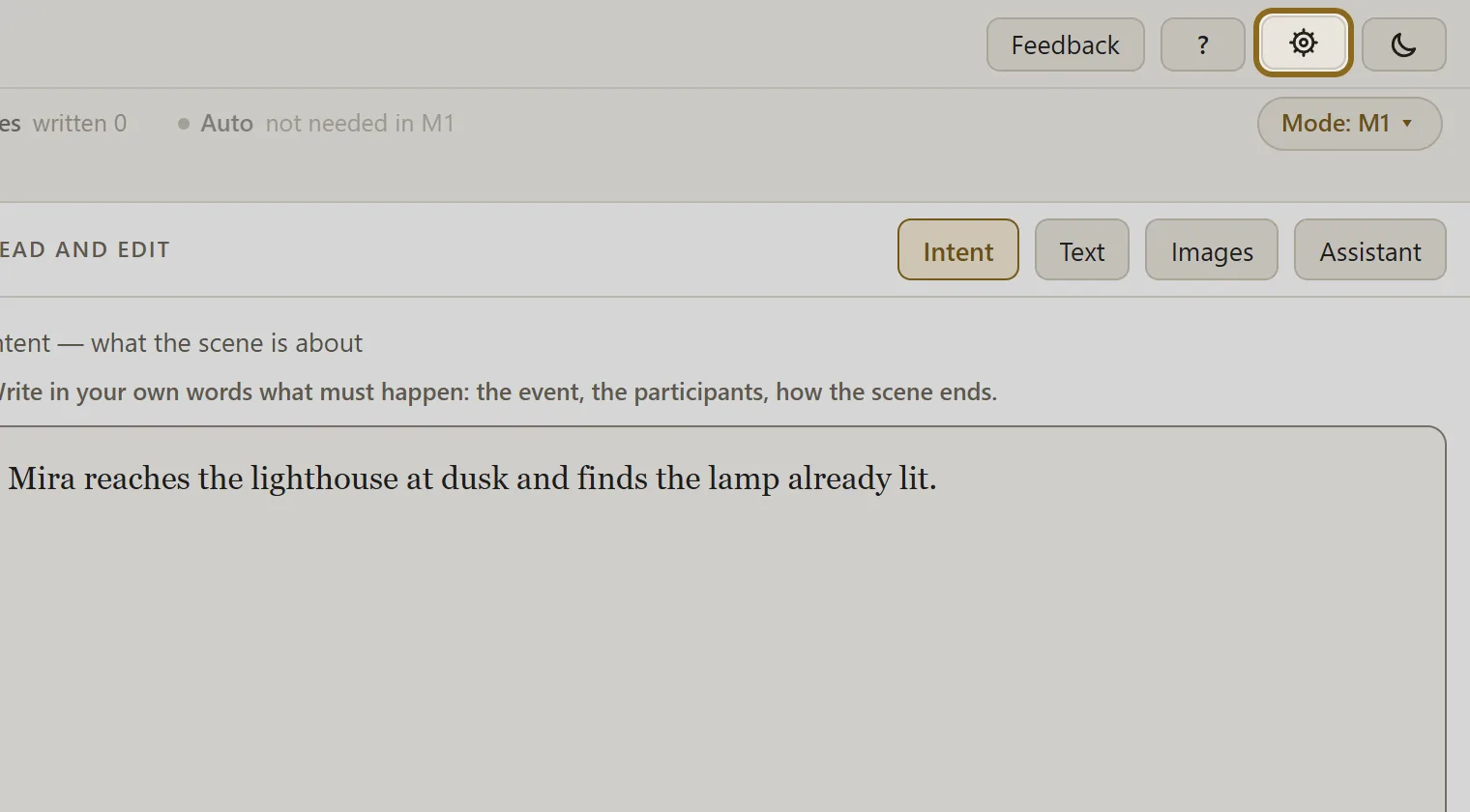
Click the “Settings” gear in the workbench header and choose “Prompt library”.
-
Find the entry by search or by group and click it — the text opens on the right.
-
On the “Default” tab, read the text that is working now and click Copy to my variants. Your variant opens in the editor.
-
Correct the text and click Save. A saved variant is not working yet — it is only a draft.
-
Click Make active — from now on the assistants take your variant. The Use the system text button puts the system text back to work; your variants stay as they are.
-
The entries in the collapsed “Not in use right now” section are not in play right now: editing them changes nothing.