
How to connect your AI
Scenes are written by an AI you already have access to. We recommend a subscription — an agent app — but an access key works too. You set this up once.
-
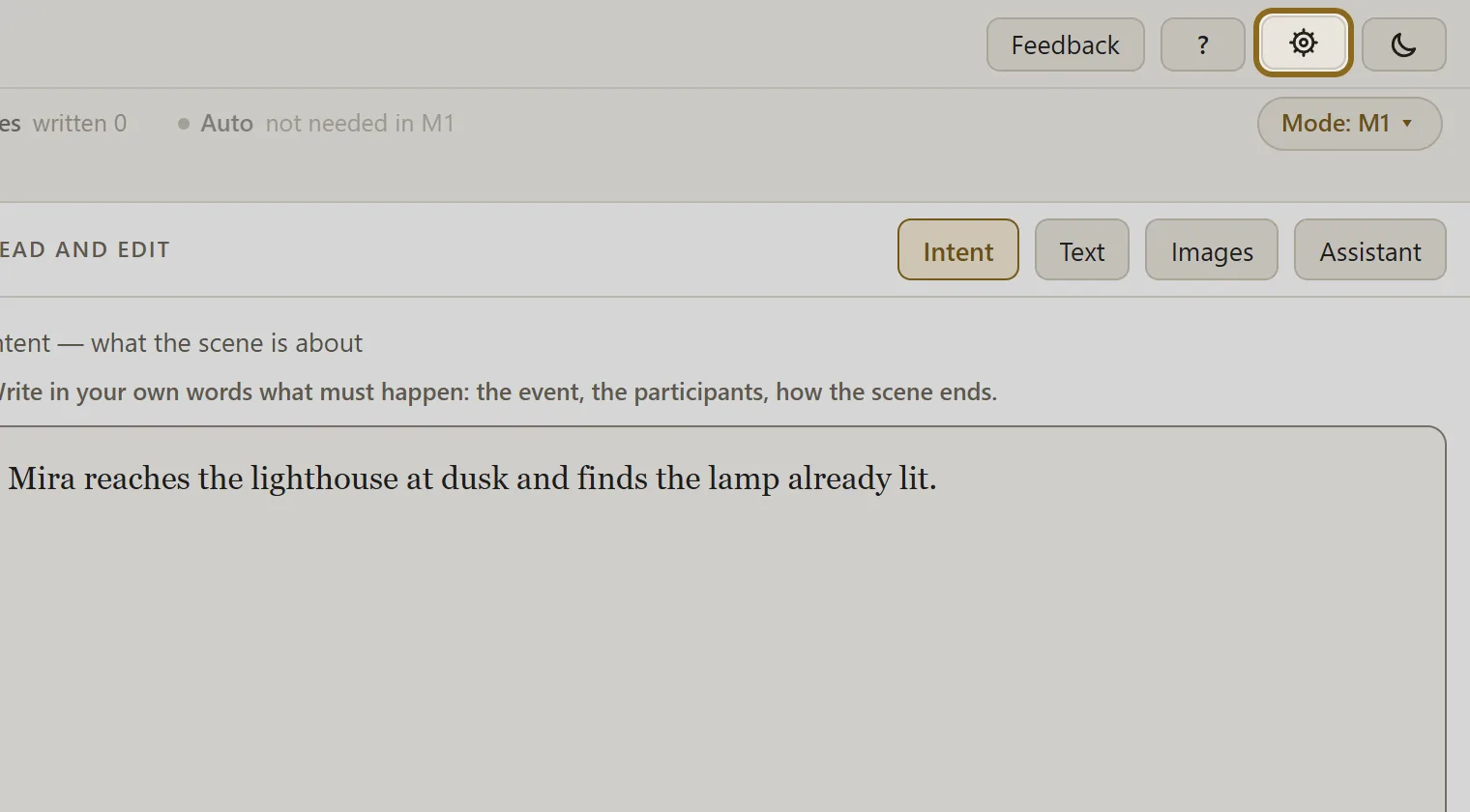
In the workbench header, click the gear and choose AI connection.
-
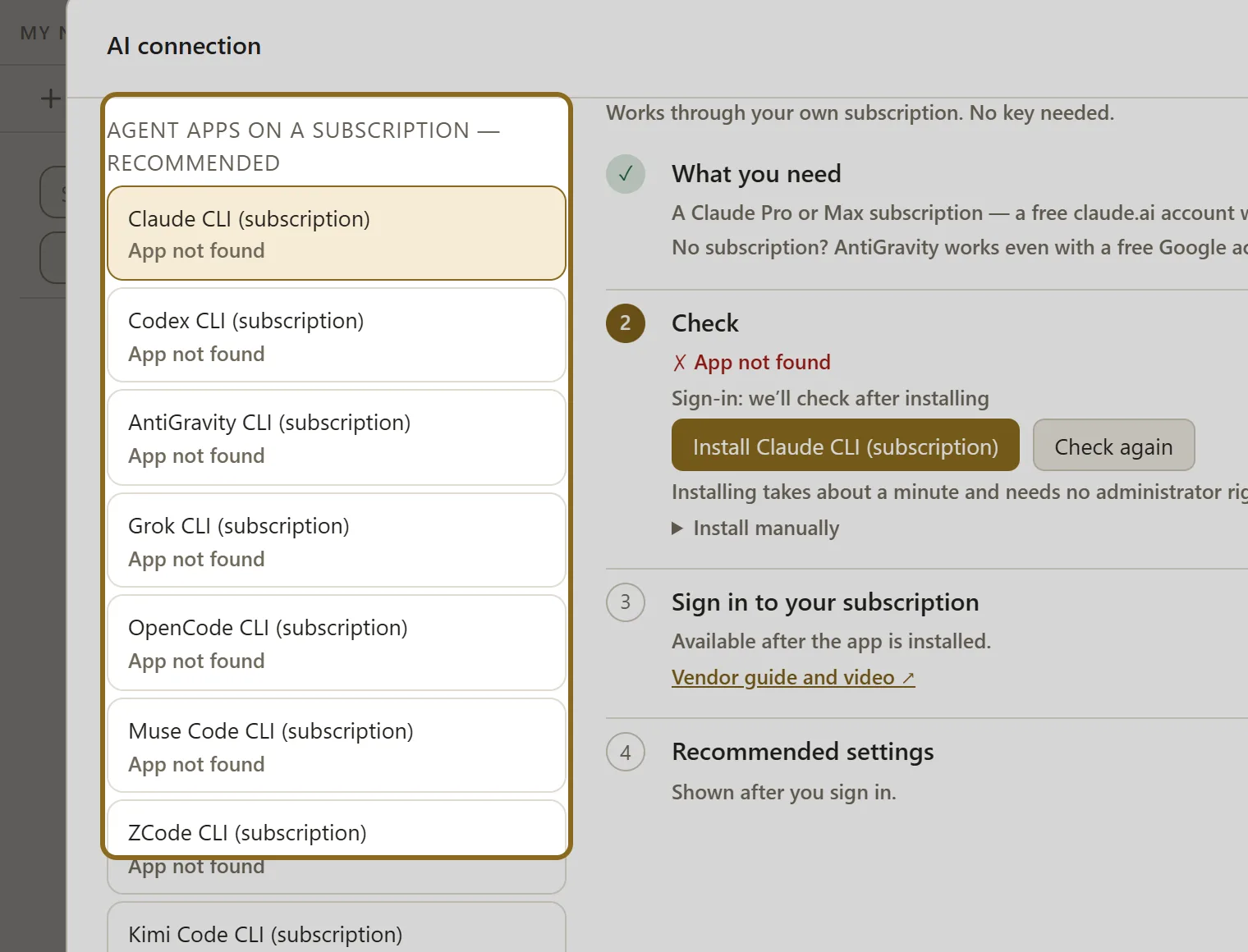
Pick a provider on the left. Our advice is the “Agent apps on a subscription — recommended” group: if you already have an AI subscription, it costs you nothing extra. Any app in this group writes scenes and builds the novel canon on its own. You can also pick the “By access key” group — you pay for the work done, but a key handles one-shot requests only: the canon, the card-file review and the autopilot are run by an agent app, so with a key alone you fill in the canon cards yourself.
-
The steps for the provider you picked appear on the right. Follow them top to bottom: a subscription needs the application installed and a sign-in; an access key needs to be pasted, then click Save the key.
-
When every step on the right is checked off, your AI is connected and you can close the window. You can have several providers, and you can add another one at any time.