
How to look at the novel as a whole: analytics
The “Analytics” section shows what you have written from above: what happens in each scene, where the tension rises and falls, which character turns up where. It helps you find the slack before the final pass. It works with a scene plan alone, but the full picture comes together from accepted scenes.
-
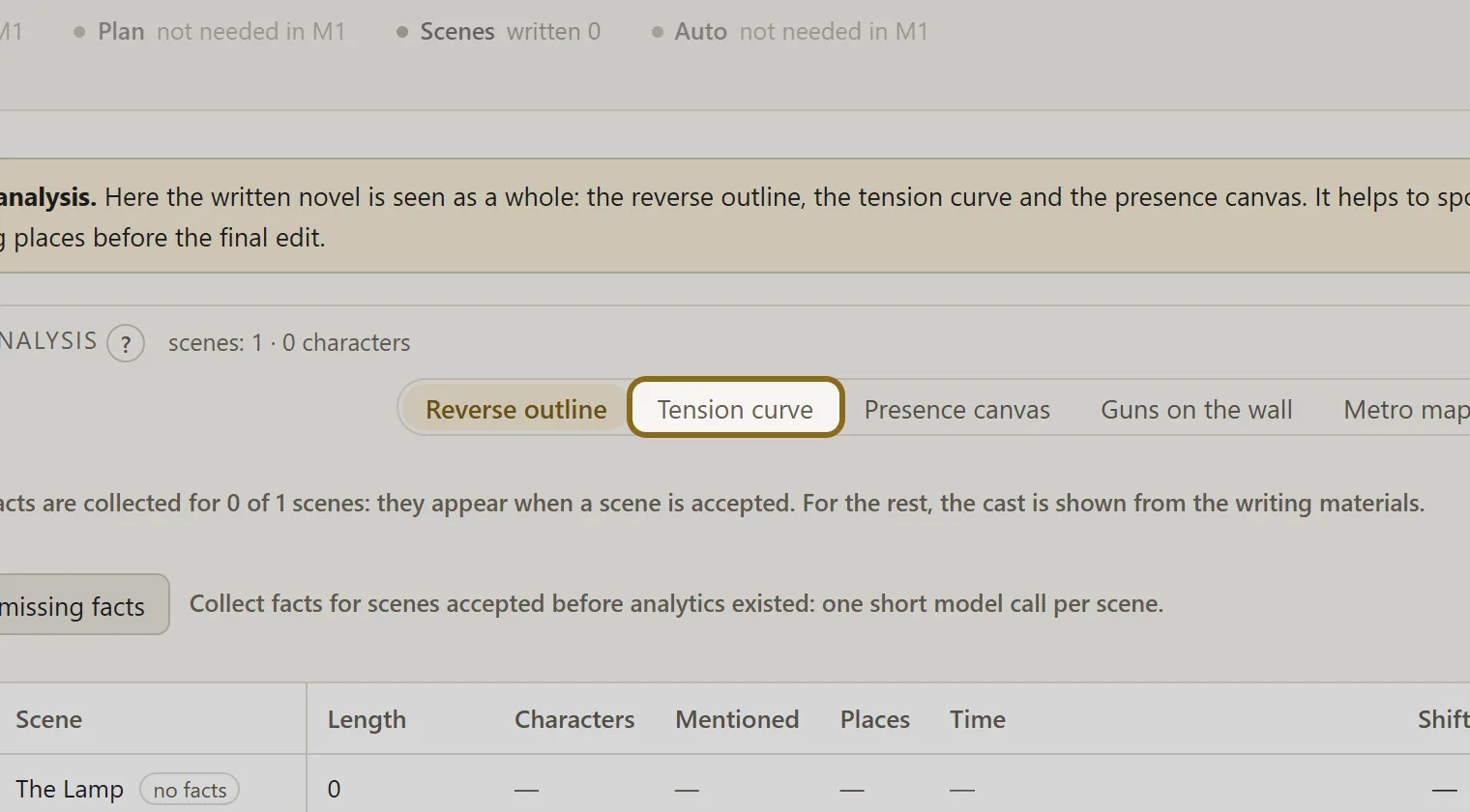
In the novel sections, open “Analytics”. The “Reverse outline” tab opens first: the novel scene by scene, line by line.
-
The facts of a scene are collected the moment it is accepted. If the top of the screen says that not every scene has facts, click Collect missing facts — the assistant goes briefly through the rest.
-
Open the “Tension curve” tab. The flat and low stretches are the places where a reader may grow bored. The “Full screen” button opens the curve across the whole screen, and the player walks through the novel scene by scene.
-
The “Presence canvas” tab shows which scenes each character is in. That is how you see who has dropped out of the story for a long stretch.
-
The “Guns on the wall” tab is the promises made to the reader. It is not built by itself: click Gather the threads, and the assistant gathers which guns have fired and which are still hanging by the finish.
-
The “Character paths” and “Panorama” tabs show the novel by its places: where the action runs and how the characters move. They rest on the same scene facts. The panorama takes the pictures of places from the canon: a place without a picture gets a link for drawing one.